
Skip to product information
1 of 1

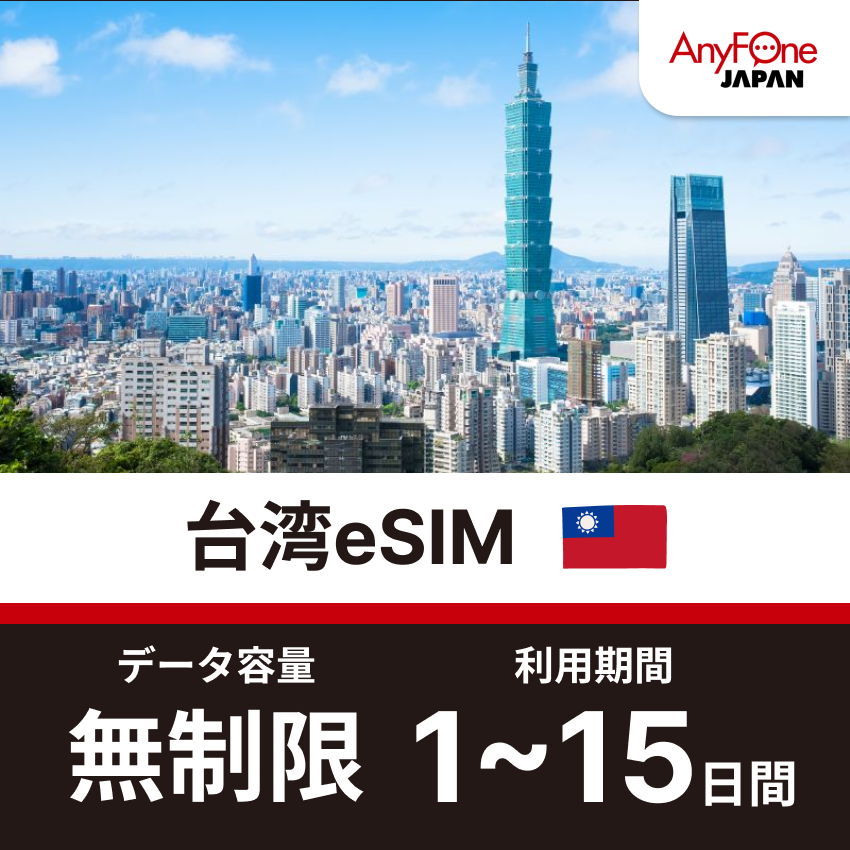
Taiwan eSIM 5G Unlimited Data

Taiwan eSIM 5G Unlimited Data

Regular price ¥890
Regular price Sale price ¥890
Sale Sold out
Untaxable
option

Please Check Before Purchase

Before completing your order, please make sure that your device is eSIM Compatible.
Check Compatibility

Product Description

Network 4G/5G
Data package Unlimited
Carrier Chunghwa Telecom
Coverage Taiwan
Tethering / Hotspot Available
Voice calls / SMS Not supported (only via app [VoIP])
Delivery Method By email*4

Important Notice

  1. Please activate the service within 30 days of purchase. You will not be able to start using the service after 30 days.
  2. The first day of use is counted as day 1. One day will be added after 0:00AM local time (based on UTC+8).
  3. If you cannot connect to the internet after setting up your eSIM, please turn on data roaming and restart your device. If the issue persists, configure the APN settings provided in the email. Instructions on how to set up the APN can be found in the FAQ below.
  4. If you do not receive the eSIM email, please check your spam or junk folder. Also, please ensure that your email settings allow messages from the @anyfone.jp domain.
View full details
Taiwan eSIM 5G Unlimited Data
Selected Variant Image
option: 1 day
Regular price ¥890
Regular price Sale price ¥890
Selected Variant Image
Taiwan eSIM 5G Unlimited Data
option: 1 day
Regular price ¥890
Regular price Sale price ¥890
  • Step 1

    Check Compatibility

    Please check if your smartphone meets the following conditions before purchasing:

    1. It is SIM unlocked or SIM-free.
    2. It is eSIM compatible.
    How to Check eSIM Compatibility? 
  • Step 2

    Select Data Plan

    Please select your desired product plan, days option, and quantity, then proceed to checkout. During the checkout process, you will be required to enter your name, email address (for receiving the eSIM QR code) and credit card information.

  • Step 3

    Receive eSIM QR Code

    The eSIM installation QR code and setup instructions will be sent to your email address (within a few minutes after payment is completed).

Icon Image

Unlimited 5G High-Speed Data

Travel eSIMs with unlimited high-speed 5G connectivity. Stream videos, use navigation map apps, and share your travel highlights on social media without worry.

Icon Image

No App Required

No need for any app installations or membership registrations. Simply purchase online and scan the QR code sent to your email to activate.

Icon Image

Instant Email Delivery

Receive your eSIM QR code within minutes of payment. Whether you're waiting at the airport or prepairing at the last minute, you can secure your internet connection the moment you need it.

Icon Image

Connect Multiple Devices

Our eSIM supports mobile hotspots, allowing you to link your laptop, tablet, or a companion’s smartphone. It’s the perfect solution for digital nomads, business travelers, and group trips.

How to Check if Device is eSIM Compatible

FAQ

How can I check which devices are compatible?

Please see the "How to check compatible models" section on the product page for detailed instructions on how to check compatibility using the device's settings screen or dial operation.

How do I receive my eSIM?

After completing the purchase process, a QR code for installing the eSIM and instructions for setting it up will be sent to the email address you entered. This email will usually arrive within a few minutes.

If you can't find it in your inbox, please check your spam or promotions folder.

If you still have not received the item, please contact our customer support. We will promptly resend the item.

When using eSIM, do I need to remove and insert the SIM card?

No, there is no need to physically insert or remove the SIM card.

Since eSIM is a digital SIM that can be downloaded directly to a device, everything from setup to use can be completed on a single device.

After installation, you can immediately start using the Internet by simply checking that the eSIM is set as the preferred line in the "Mobile Communication Settings" of your device. Operation is simple, and even first-time users can complete the process in just a few minutes.

What should I do if I run out of data during my trip?

With AnyFone JAPAN's eSIM, you can immediately resume communication by purchasing additional data plans as needed.

Even if you've used up your current eSIM plan, you can continue using it by simply installing a new eSIM using the same steps.

How do I configure the APN settings?

APN Settings on iPhone

  1. Go to Settings > Cellular.
  2. Select the eSIM you want to configure.
  3. Select Cellular Data Network.
  4. Enter the APN settings provided in the email.

APN Settings on Android

  1. Go to Settings > Network & Internet.
  2. Choose Mobile Networks
  3. Select Access Point Names (APN).
  4. Enter the APN settings provided in the email.

How to Set up eSIM

Once the purchase process is complete, a QR code and setup instructions will be sent to the email address you provided.
If you're unsure how to set it up, please refer to the guide below.

Items Required for eSIM Setup

Icon Image

eSIM-Compatible Device

Please prepare a device that supports eSIM and is SIM-unlocked.

How to Check eSIM Compatibility? 
Icon Image

Internet Connection

Please ensure that your device is connected to the internet before starting the setup process.

iPhone
Android

iPhone

▼ iOS 17.4 and Later

1Open the email with your eSIM information, long-press and hold the displayed QR code. Then tap [Add eSIM].
iOS 17.4 and Later Step 1
※ Depending on your screen and text size settings, the [Add eSIM] option may not be visible. Please scroll down the options panel to locate [Add eSIM].
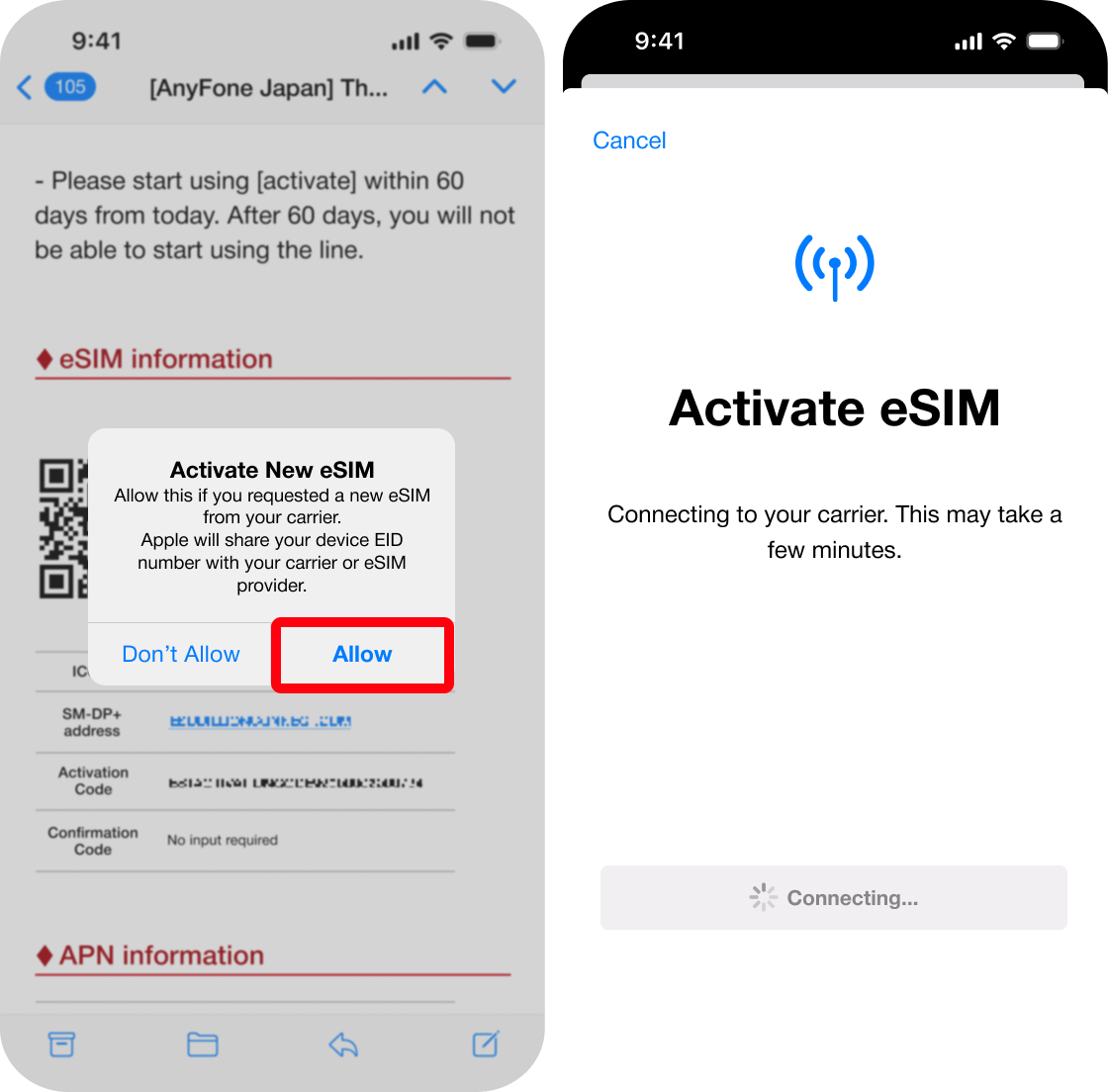
2When prompted to share your device EID number, tap [Activate]. You will proceed to the Activate eSIM screen, follow the on-screen instructions to complete the setup.
iOS 17.4 and Later Step 2

※ In some email apps, pressing and holding the QR code may not work, or the [Add eSIM] option may not appear.
If that happens, please use one of the methods in “Method B to C” below, or use the default iPhone Mail app.


▼ iOS 17.3 and Earlier

1Open [Settings] and tap [Cellular].
iOS 17.3 and Earlier Step1
2Tap [Add eSIM], then select [Use QR code].
iOS 17.3 and Earlier Step2
3Tap [Scan QR Code], and the camera will be activated. You can now choose one of the following options:
  • Method B Enter eSIM Details Manually
  • Method C Scan eSIM from Another Device
iOS 17.3 and Earlier Step3
Method B:Enter Details Manually>
  1. On the [Add eSIM] screen, select ["Enter Details Manually"]
  2. Enter the [SM-DP+ Address] and [Activation Code] provided in the email.
    ※ No confirmation code is required for this eSIM setup.
  3. Tap [Next] at the top right to start the activation. Follow the on-screen instructions to complete the setup.
Note: When copying the [SM-DP+ address], be sure to remove any unnecessary characters like [http://] or trailing slashes (e.g., [http://(SM-DP+address)/]).
iOS 17.3 and Earlier Method B: Enter Details Manually
Method C:Scan from Another Device>
  1. Display the QR code on another device or print it out.
  2. Use the camera on the [Add eSIM] screen to scan the QR code. Activation will begin automatically. Follow the on-screen instructions to complete the setup.
iImportant Notes
  • Activation may take a few minutes. After scanning the QR code, please wait until the “Setup Complete” message appears on the screen.

■ Post-Activation Configuration

For detailed instructions on communication settings after activation, please refer to the official Apple Support page (external link) below.

Set up eSIM on iPhone - Apple Support

Android

1Open [Settings] and tap [Network & internet].
*Note : Settings might vary by manufacturer for Android devices.
Android eSIM Activation step 1
2Open [Add more], then tap [Download a SIM instead].
Android eSIM Activation step 2
3Tap [Next] to open the camera. Choose one of the following options:
  • If you are scanning a QR code: Display or print the QR code on another device, then scan it with the camera. Follow the on-screen instructions to complete the setup.
  • If setting up without a QR code (manual input): Tap [Help] at the bottom left and follow the instructions in steps 4 - 6.
Android eSIM Activation step 3
4Tap [Enter it manually] in the description.
Android eSIM Activation step 4
5Copy the [SM-DP+ ActvCode (for Android)] from the email we sent and paste it into the input field on your smartphone, then tap [Continue].
The image below shows the contents of the email on the left side and the Android screen on the right side.
Android eSIM Activation step 5
6When the following screen appears, tap [Download].
Android eSIM Activation step 6
iNotes
  • A network connection is required for eSIM setup. Please connect to Wi-Fi or mobile network first before proceeding with the following steps.
  • It may take a few minutes to activate an eSIM. Please wait a few moments after scanning the QR code until "Setup Complete" appears on the screen.
  • If you cannot connect to the internet after setting up:
    • If you set up using a QR code: Manually configure the APN information as described in the email.
      APN can be set from [Settings] > [Network & internet] > [Mobile Network] > [Access Point Name].
    • If you set up manually: Turn on roaming.
      Go to [Settings] > [Network and internet], tap the settings icon next to the eSIM you have set up, and turn on the roaming item.
    • If using a Google Pixel device and still unable to connect after setting up eSIM and APN, please go to roaming settings and turn on it.

Inquiry

If you have any questions, please contact us below.

Call Customer Support

050-5527-0564

10:00-13:00, 14:00-17:00 (Mon to Sun)